How to print the result picture of the calorimeter
After using the calorimeter to complete the test, printing the result picture is the key link to obtain the test data and keep the record. Mastering the standardized operation method can greatly improve the work efficiency. The following is a detailed introduction to the steps of printing the result picture of the calorimeter, which is simple and easy to learn at a glance.
Step 1: Confirm the device connection status
Before printing, check whether the connection between the calorimeter and the printer is normal. If it is a wired connection, make sure that the data cable is not loose and the interface is not damaged; if it is a wireless connection, make sure that the device has been successfully paired and the printer is turned on and ready to avoid printing failure due to connection problems.
Step 2: Enter the result query interface
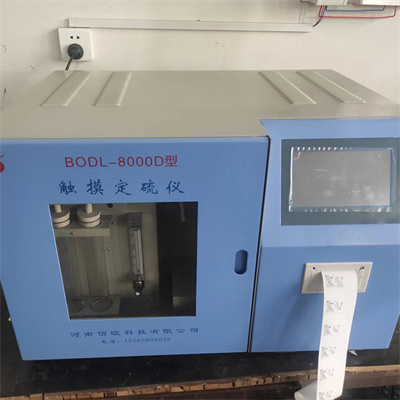
After completing the test, find and click the "Result Query" or "Data View" related function button on the operation panel of the calorimeter, enter the test result list interface, and find the corresponding test item results that need to be printed.
Step 3: Select the printing function and set the parameters
On the result details page, find the "Print" button, and click it to pop up the printing parameter setting window. You can choose the printing format according to your needs to confirm the number of copies to be printed. Some calorimeters also support choosing whether to print charts, curves and other additional content. After completing the parameter settings as needed, click "Confirm".
Step 4: Start printing and check the results
After completing the parameter setting, the system will automatically send instructions to the printer and wait for the printer to complete printing. After printing, take out the result picture in time and check whether the data on the picture is complete and clear. If there is any ambiguity or omission, you can re-operate the printing to ensure that the result is accurate.
Precautions
During the operation, if you encounter printing failure, you can first check whether the printer ink cartridge and paper are normal, restart the device, and then try again. At the same time, strictly follow the instructions of the calorimeter to avoid accidentally pressing the button to affect the printing process and ensure the smooth progress of the printing work.
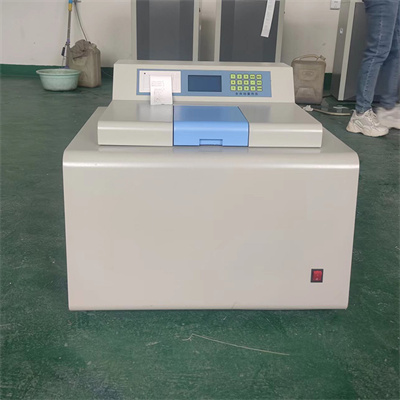 How to read calorimeter data
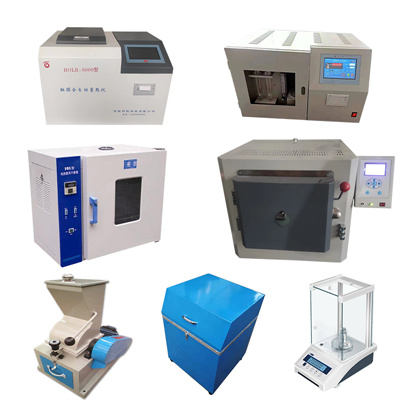 What is the design principle of a calorimeter?
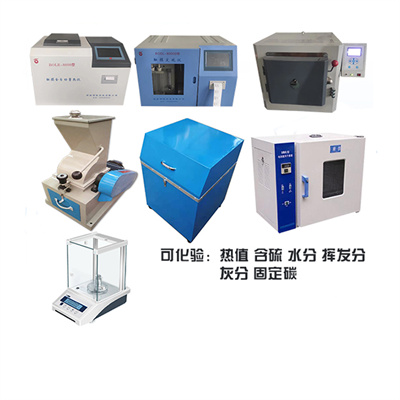 What is the harm of lack of water in the calorimeter?
 What is the input interface of the calorimeter?