How to print the results of a calorimeter
Preparation is essential
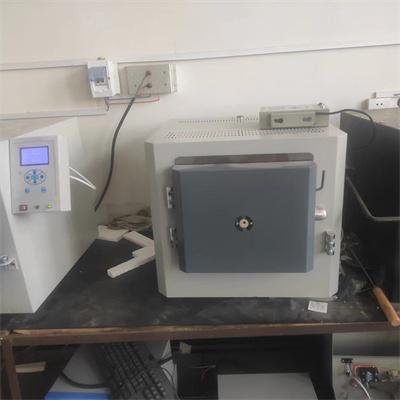
Before using the calorimeter to print the results, make sure that the instrument is in normal operation. Check whether the power connection is stable, whether the various parts of the instrument are abnormal, and confirm that the printing paper has been installed correctly to avoid printing failure due to lack of paper. In addition, it is also necessary to ensure that the calorimeter has been calibrated and the data measurement is accurate, which is the basis for reliable subsequent printing results.
Enter the printing function interface
Turn on the power of the calorimeter, and after the instrument completes the self-test and enters the main operation interface, find the function options related to data output. Different models of calorimeters may have different operation interface layouts, but there are usually buttons for "Print", "Data Output" or similar logos in the main menu. Enter the function interface by touching the screen or operation buttons to prepare for the printing operation.
Select the data to print
After entering the print function interface, you will see multiple sets of measurement data stored by the instrument. According to the actual needs, select the specific data records to be printed. Some calorimeters support single selection, and some support multi-selection batch printing. When selecting, carefully check the data number, measurement time and other information to ensure that the selected data is accurate and avoid printing out unnecessary content.
Perform a print operation
After confirming the data to be printed, click the "Print" button in the interface. At this point, the calorimeter will send the selected data to the printer, and the printer will start working. During the printing process, pay attention to the working status of the printer. If there are problems such as paper jams or unclear printing, follow the instructions of the instrument manual in time. After printing is completed, take out the printing paper and check whether the printing result is complete and clear, including key information such as measurement data, measurement time, and related parameters.
Common problem handling
If there is no response during printing, first check whether the connection between the printer and the calorimeter is normal, re-plug and unplug the cable or restart the device; if the printing result is incomplete, check whether the printing paper is installed in place, or whether the full printing option is ticked in the printing settings. Mastering these processing methods can make the printing work smoother.
Mastering the method of calorimeter printing results can make it easier to retain and share experimental data. Follow the above steps to easily complete the printing task and provide strong support for subsequent work.
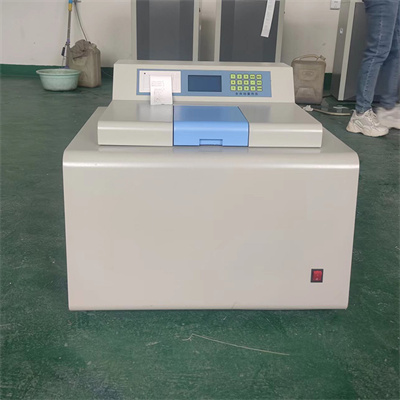 How to read calorimeter data
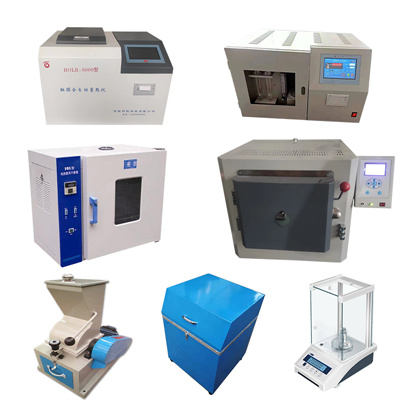 What is the design principle of a calorimeter?
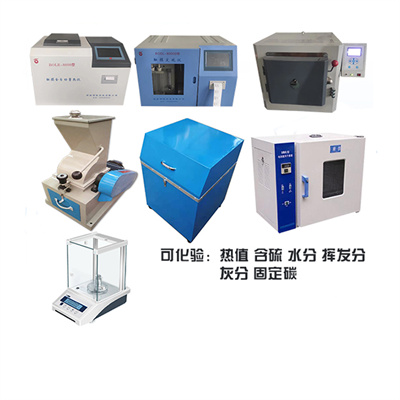 What is the harm of lack of water in the calorimeter?
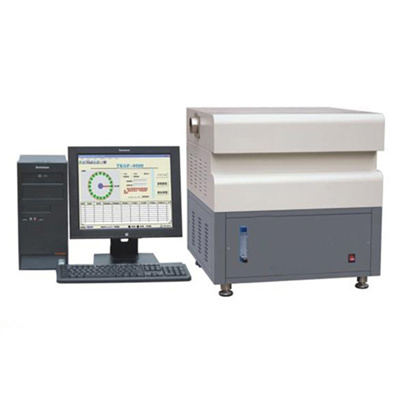 What is the input interface of the calorimeter?